

Here's how to use AI for website design, from my own shop: my bots rebuilt my booking page and price pages as drafts, and I approved each change before it went live.
Here's an embarrassing truth. For a while, my "Book An Appointment" page was a single button on an empty screen. And most of my iPhone pages said the same three words: "call for a quote."
Think about what that means for a customer at 10 PM with a cracked screen. They can't see a price. They can't see a time slot. So they go somewhere else.
My bots and I fixed both. The booking page now shows the calendar right on the page. And every iPhone from the 7 to the 17 line has its own price page, plus a hub that compares them.
Below are the real before-and-after examples, and how I asked for each change.
Jump To: The Booking Page · The Price Pages · What I Won't Claim · The Short Version · Step By Step · Before And After · Copy These Prompts · Before You Approve · Common Mistakes · Worked Scenario: Replacing "Call For A Quote" · More Questions · A Small Business Can Work Like A Big One · How Grok Bot Usage Works
The Booking Page
Before: a single button on an empty screen. After: the calendar on the page, plus call and text buttons and what to expect. See the booking page on the site.
The Price Pages
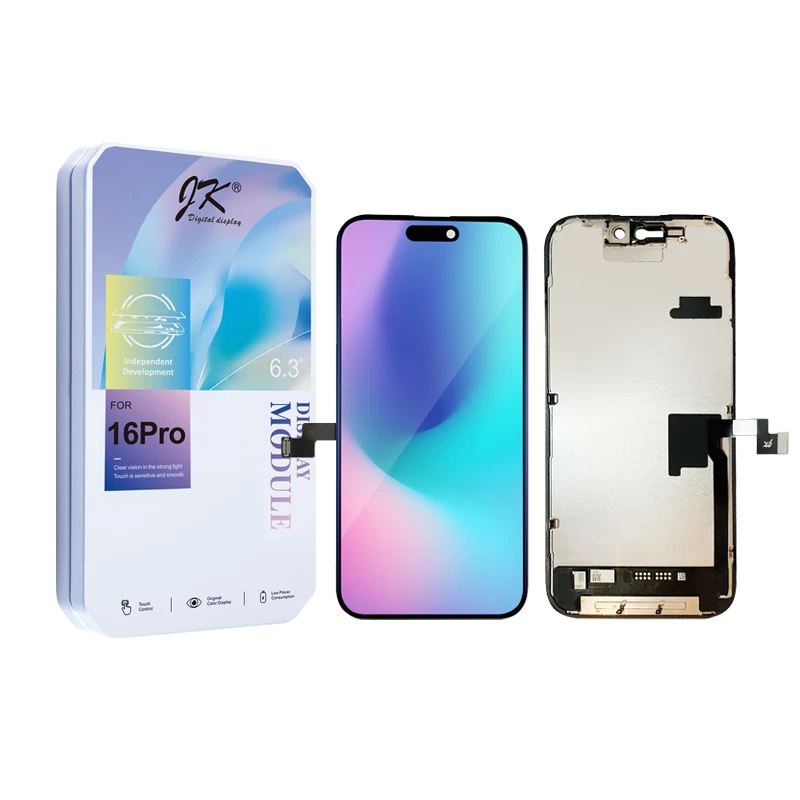
Before: most pages said "call for a quote." After: a price page for every iPhone from the 7 to the 17 line, plus a hub. See it live: iPhone Screen Repair Prices and iPhone 16 Pro Repair Prices.
What I Won't Claim
Website traffic changes for many reasons, so I'm not saying these changes caused any rise or fall. The site is just clearer and easier to book from.
The Short Version
Here's the process I'd follow again: name the visitor's task, inspect the obstacle and repair it locally where possible. A new visual direction is a separate redesign brief, not the default fix for one awkward gap or button.
Step By Step
- Choose one page and one visitor task, such as booking or finding a price. Describe an observed obstacle; do not assume a page loses customers without evidence.
- Say what the page must do. For booking: show the calendar. For prices: show real prices.
- Give the bot your real content. Your price list, hours and wording.
- Inspect the existing component before editing. Propose the smallest correction, with the affected-page list. Ask me directly before any web change, including a draft edit; use only the approved preview and never edit live directly.
- Check the named task on a phone and computer, at the target width and one narrower width. Test nearby buttons, text wrapping and keyboard focus where relevant; list checks not run.
- Name the remaining difference precisely. Keep accepted spacing, crop and copy; request one local correction pass. Stop for review if the same check fails again or the fix needs another template.
- Approve, then publish.
- Keep the old version as a rollback.
Before And After
Booking page before: one button on an empty screen.
Booking page after: calendar on the page, call and text buttons,
what to expect.
Price pages before: "call for a quote."
Price pages after: one page per model plus a comparison hub.
Copy These Prompts
Estimated usage: our rough guide, not an official figure. Est. Usage: Low quick one-off asks; Est. Usage: Medium multi-step tasks or short research; Est. Usage: High long research, many tool calls, browser work or daily routines.
Inspect [page and section] at [viewport]. The visitor needs to [task], but [observed obstacle]. Evidence: [screenshot and steps]. Keep the current layout, fonts, colors and approved copy. Propose one local repair using only the content below; do not edit yet. Ask me directly before any web change. If a redesign is needed, explain why and wait for separate approval. After approval, use only the agreed preview and report the checks run.
Content: [your details]
Est. Usage: Low
Keep [accepted details]. Only [specific difference] remains at [viewport]. Propose the smallest correction and ask me directly before editing the preview. Recheck [original task and nearby behavior]. Stop after this pass; record the revision, checks not run and next action. Do not publish.Est. Usage: Low
Before You Approve
- The preview works on a phone.
- Every price or fact comes from your real list.
- There's one clear call to action.
- The old version is kept.
Common Mistakes
- Redesigning everything at once.
- Letting the bot invent prices or wording.
- Editing live.
- Checking only on a computer.
- Vague feedback like "make it nicer."
Worked Scenario: Replacing "Call For A Quote"
Say most of your price pages say "call for a quote." You ask the bot to draft one page per phone model from your actual price list, plus a hub page that compares them, all on a draft theme.
You check a few on your phone, catch one model with a missing price and tell the bot to leave it blank rather than guess. When the rest look right, you approve them and they go live together.
More Questions
Should Every Page Show Prices?
If you can show real prices, customers can decide without calling. Only show prices that come from your actual list.
Can A Bot Design A Whole Site?
It can draft pages and layouts. You approve each one.
What Should I Redesign First?
The page that loses customers fastest, often booking or prices.
A Small Business Can Work Like A Big One
Many small business owners don't know these AI tools exist yet. That's a missed chance, because they let a small shop handle work that used to need a team: price updates, store edits, daily reports and research. You stay the one who approves every change, and the routine work gets done in the background.
How Grok Bot Usage Works
Franchitti's Fix is run by Steve with help from Grok Bot, so here's the plain version of how its usage works.
- Your Plan Includes A Usage Allowance. Paid plans come with included usage that refreshes every week. Higher-tier plans include more. Unused usage doesn't roll over. (Source)
- Bigger Jobs Use More. In general, long research, tasks that use lots of tools and routines running in the background do more work, so they draw down the allowance faster than a quick question.
- Light Settings Stretch It. Lower effort for simple jobs, fewer and less frequent routines and short, focused requests all help the allowance last. See How To Regulate Grok Bot Usage.
- Checking Your Usage. In Grok Bot, open Settings, then Usage & Billing. On The X Subscription, you can also check Usage at grok.com/dashboard, which shows the weekly pool, the next reset date and any prepaid credit. (Source)
Try Grok Bot
Affiliate link: we may earn a referral reward if you sign up.
Related Guides
- How To Use AI For Web Development: My Website Overhaul
- How To Use AI With Shopify: My Repair Shop's Store
- How To Use AI To Update Your Website's Wording
- How To Use AI For Website SEO: My Pages Overhaul
- How To Use AI To Write Blog Posts: My Blog Overhaul
Why This Matters To Me
I was an overworked and overwhelmed one-person shop trying to run a six-figure business alone, because hiring here is so expensive. Grok Bot helped me accomplish things I never thought were possible. I could never have paid someone to rebuild these pages. The full story starts in How To Set Up An AI Assistant With Grok Bot.
More In This Series
Start with the main guide: How To Set Up An AI Assistant With Grok Bot.
- How To Set Up An AI Assistant With Grok Bot
- How To Use AI Agents At Work Without Losing Control
- How To Write AI Prompts For Beginners: 5 Parts
- AI Prompts For Small Business Owners: 5 Industries
- Your AI Will Make Mistakes: How Reviewing And Feedback Get It Close To Perfect
- How To Use AI To Update Your Website's Wording
- How To Automate Tasks With AI Using Routines
- How To Use AI To Run A Small Business: 4 Routines
- How To Connect AI To Gmail And Google Calendar
- How To Automate Business With AI: Shopify And RepairDesk
- How To Use AI For Pricing: Exact Prices, Clean Listings
- How To Use AI In Everyday Life: Bot Ideas
- Grok Bot Pricing And Usage: One Bot Or Many
Back to the series index: AI Business Overhaul Stories: Before And After. All series: Every AI Guide In One Place.
Want To Talk Shop?
I'm Steve, and I run Franchitti's Fix, a home-based iPhone repair shop in San Diego. Walk-ins are welcome, and booked appointments get priority. Please call or text ahead. Questions about bots, or an iPhone that needs fixing? Book An Appointment or call (720) 413-8150, or read more about me.
Try This Prompt: AI For Small Business
Restaurant
List 5 repeat tasks in my restaurant I could hand to an AI assistant, with what I would still need to approve myself.
Salon
List 5 front-desk tasks at my salon an AI assistant could draft, like reminders and rebooking texts, and what I should always approve first.
Contractor
Write a missed-call text reply for my contracting business: thank them, ask for the job address and a photo, and say when I usually call back.
Retail
Make a weekly checklist for running my shop's social posts with AI: what to draft, what to review, what never to post without me.
Real Estate
Make a weekly AI routine for my real estate business: what to draft (posts, follow-ups), what to review, what never to send without me.
Repair Shop
Draft a ready-for-pickup message for [customer] about their [device] repair. Include our hours: [hours]. Under 40 words.
Personal And Family
Help me set up a weekly family plan with AI: chores, meals and reminders for [family members]. Keep it to one page.
Seniors
List 5 simple, safe ways I could use AI each week, like reading letters or making shopping lists, and what I should never share with it.
How To Use These Prompts
Pick the card closest to your business, tap To Copy, then paste it into your AI app.
Tips To Customize Them
- Fill In Every [Bracket] With Your Own Details.
- Add Context: Who It Is For, How Long, What Not To Change.
- Ask A Follow-Up To Adjust The First Answer.
Common Mistakes
- Leaving Brackets Unfilled.
- Pasting Private Info Like Passwords Or Card Numbers.
- Trusting Prices, Dates Or Facts Without Checking.


